


CARE Senior Registration Process
 The CARE telephone reassurance program is designed and developed by Database Systems Corp. (DSC). The medication reminder program is an integral part of the CARE (Call Reassurance) phone system that checks on the well being of senior citizens and latchkey children who need regular contact.
Medication reminders are an integral part of the CARE system. Calls can be customized for each individual enrolled in this service, including special instructions. Custom information for each reminder recipient (such as name, medication type, prescription dosage, number of times per day, etc.) can be included in these medication reminder messages.
DSC provides CARE systems to many communities throughout the U.S. and Canada. DSC also provides an individual service for family and friends who wish to enroll their loved ones in this calling program.
To assist subscribers who wish to enroll in this service, DSC provides an online registration process. Register Online using our convenient web registration process.
Contact DSC to learn more about our CARE senior medication calling services.
CARE Instructional Video
The following is an instructional video prepared by Database Systems Corp. to demonstrate the management of a CARE individual client using our web portal. This YouTube video demonstrates how an individual can signup, manage and pay for a CARE account.
Here are the simple steps that should be followed when enrolling a senior in the CARE calling program.
Register Today! using our convenient web registration process.
Choose An Email And Password As Your Login
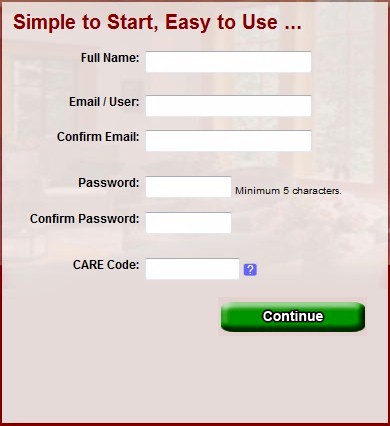
Use your email address as a valid login name and choose your own unique password. This is very important to ensure the privacy of your information and to prevent unauthorized access to your account.
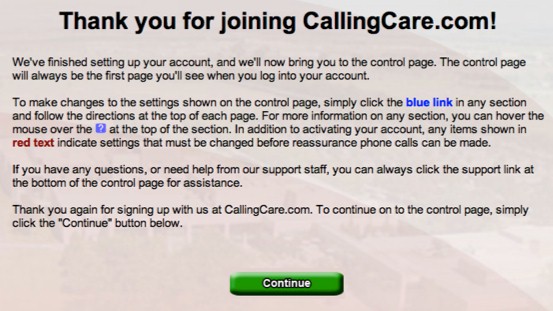
To use our CARE senior calling service, you must first agree to a Terms Of Service Agreement.
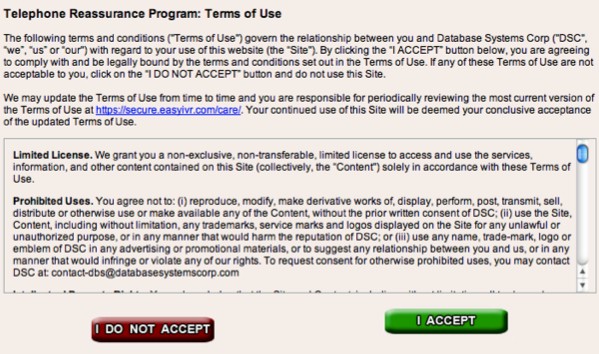
Upon accepting our terms and conditions, an account maintenance screen will appear that lets you proceed with the registration and activation of your account.
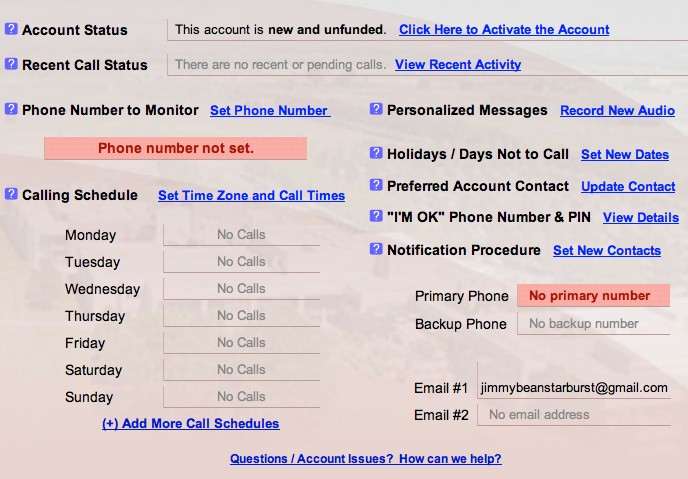
On each screen, you may notice a blue question mark to the left of each title and description. Simply move your mouse over this question mark and CARE will provide a brief description of the item.
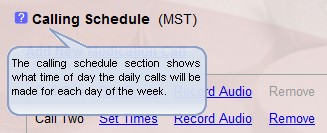
NOTE Items highlighted in red are mandatory and must be complete before CARE can begin making calls.
Specify The Senior's Phone Number
This feature identifies the senior's phone number (usually a home phone). For security purposes, this same phone must be used to call the CARE system to register it with your account.
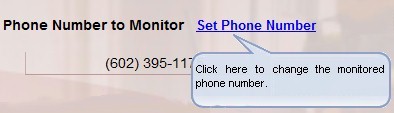
From the registration screen, select the "Set Phone Number" option. This brings up another page that provides instructions on how to designate the phone that is to be called by the CARE senior call reassurance program.
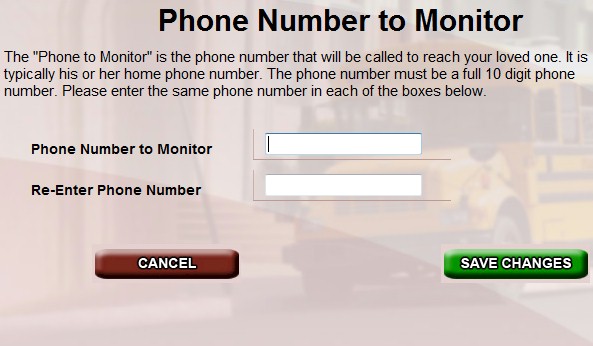
The 'Phone Number to Monitor' is the phone number you would like us to call to check on the senior. It is most likely a home phone number. To add or change this number, you will need to enter (and then re-enter) the phone number to ensure you did not enter it incorrectly.
It is important that you are very careful when entering this number. It is also important that you "Test" the number by using the Test Call feature provided from the main menu.
Designate Emergency Contacts
This feature lets you specify a primary and secondary contact in the event CARE system needs to notify someone when the senior needs assistance or does not respond.
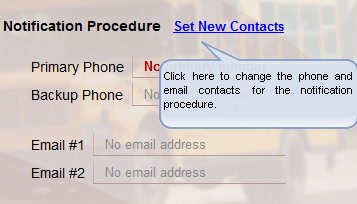
From the registration screen, select the "Set New Contacts" option. This brings up another page that lets you add or change the contact information. Contacts are the family or friends of the senior that need to be notified if the senior subscriber needs assistance or does not answer the phone. Up to 2 phone numbers and 2 emails may be entered.
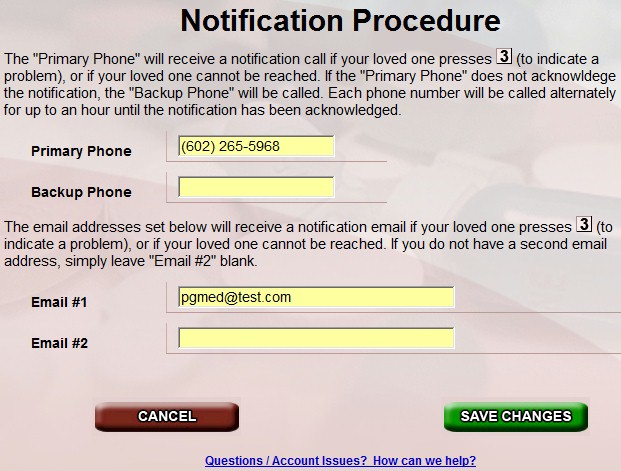
If the system cannot reach a senior after 3 calls, or the senior presses '3', the notification procedure will send out emails and call the 'Primary Phone' immediately. If the 'Primary Phone' is not answered, or the person answering does not press '1' to acknowledge the call, the 'Backup Phone' will be called. The system will then alternate between calling the 'Primary Phone' and the 'Backup Phone' for up to 1 hour until the notification call is acknowledged.
Set Senior's Calling Schedule
Each account can be customized to allow the ability to have the senior called at various times based upon the day of the week.
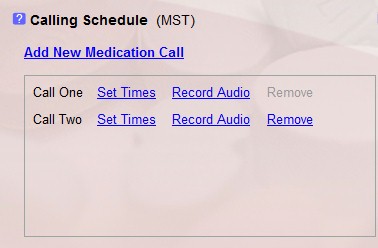
From the registration screen, select the "Set Call Times" option. This brings up another page that lets you establish when CARE is to call the senior.
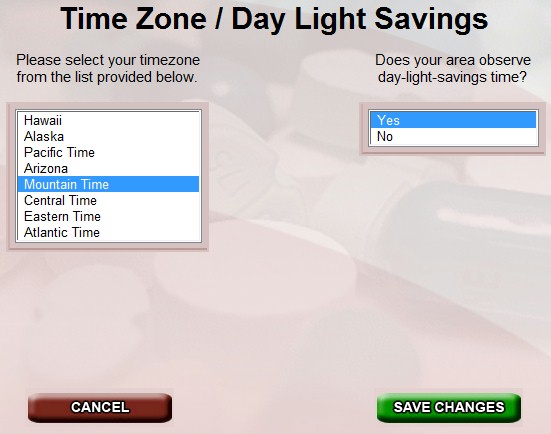
First you will need to inform CARE the time zone in which the senior resides. Also, designate whether this area recognizes daylight savings.
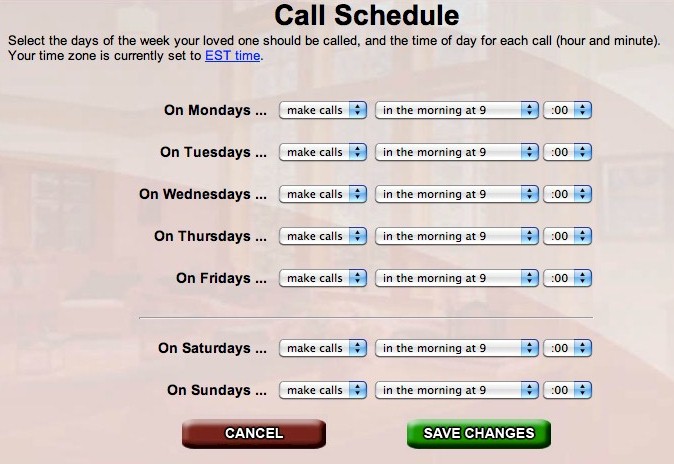
To establish a calling schedule, select "make calls" or "do not call" for each day of the week. Next, click the 'hour' and 'minute' for each calling day.
Click the "Save Changes" button when you've finished setting the schedule. Review the 'Calling Schedule' section of the main control page to confirm the schedule is set as you wanted.
Activate And Fund Your Account
Finally, this feature lets you activate your account. This is done by selecting a payment option and method.
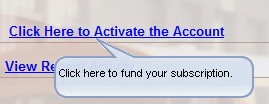
From the registration screen, select the "Click Here to Activate the Account" option. This brings up another page that lets you use a credit card to fund your account activate it.
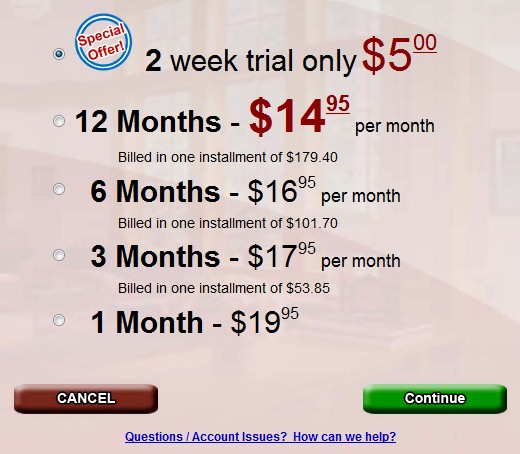
After choosing one of the 5 payment options, select the "Continue" button.
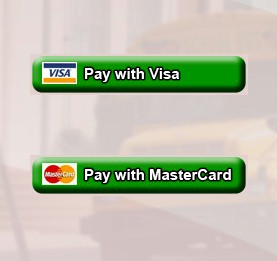
Choose a credit card for payment. DSC currently supports either Mastercard of Visa. After this selection, the following credit card information screen will appear.
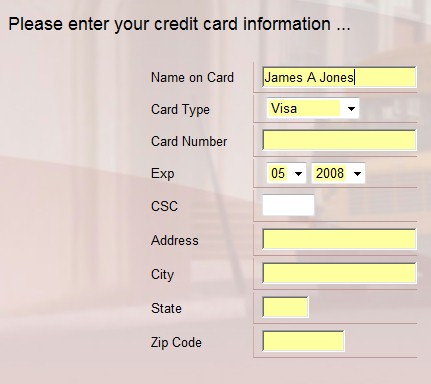
Enter your credit card data including the proper billing information as well as the credit card. Once complete, enter the "Continue" button and if the information is accepted, your account will be activated.
Record Personalized Messages
This feature lets you record personalized messages for the senior.
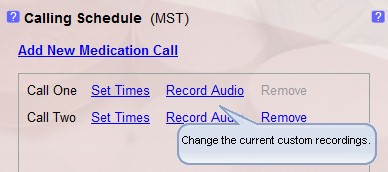
From the registration screen, select the "Record New Audio" option. This brings up another page that lets you change the default messages that are played to the senior.
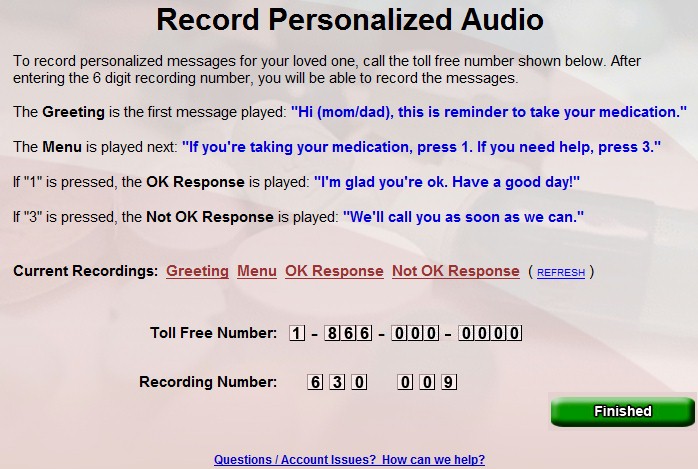
Personalized recorded messages can be saved for each senior by calling our 800 number and entering a six digit recording number. Since the message played to each senior is broken into several parts, each segment can be individually customized.
Set Dates Not To Call
This feature lets you choose specific dates when the CARE program should NOT call a senior. This is typically holidays or vacation days or when someone is staying with the senior.
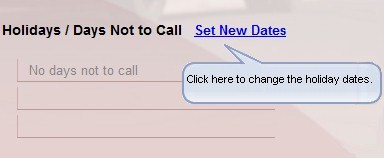
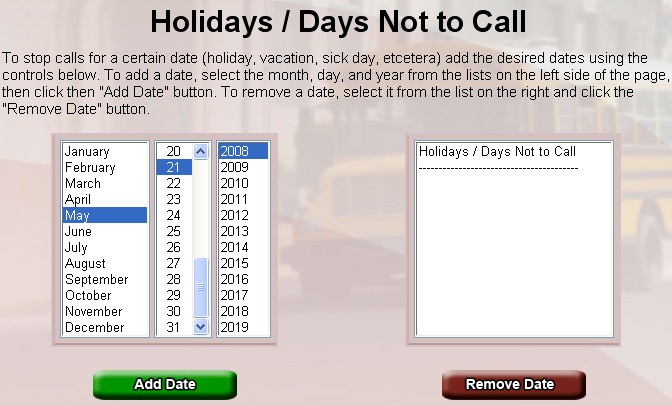
From the registration screen, select the "Set New Dates" option. This brings up another page that lets you add or remove dates from this exclusion.
Preferred Account Contact
This feature lets you choose specific dates when the CARE program should NOT call a senior. This is typically holidays or vacation days or when someone is staying with the senior.
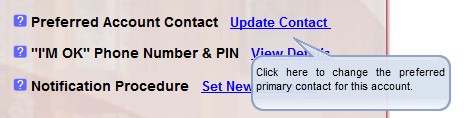
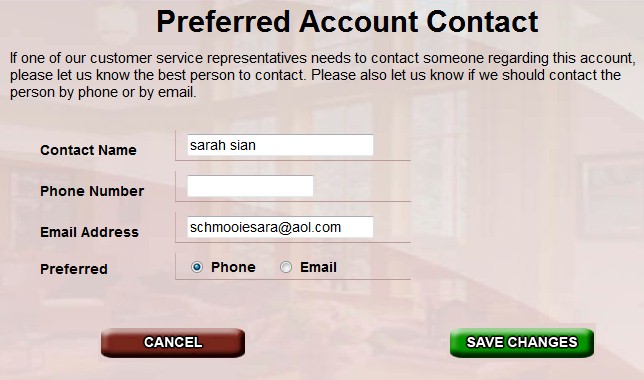
From the registration screen, select the "Preferred Account Contact" option. This brings up another page that lets you designate your preferred method of contact in the event someone from Database Systems Corp. needs to reach you regarding your account.
I'm OK Phone Number & Pin
This feature lets you choose specific dates when the CARE program should NOT call a senior. This is typically holidays or vacation days or when someone is staying with the senior.
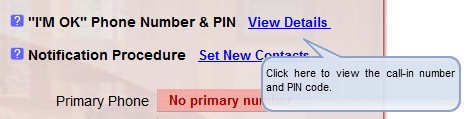
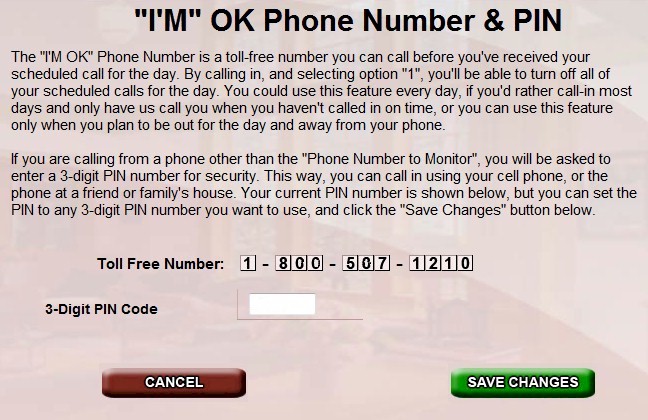
From the registration screen, select the "I'm OK Phone Number & Pin" option. This brings up another page that lets you access our 800 number and provides you with a pin number to properly identify yourself when calling into the CARE phone system.
View Recent Account Activity
This feature lets you view all activity relating to your account including each call made to a senior and the disposition of each call. Changes in phone numbers, contacts and calling schedules also appear in this display.
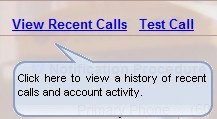
From the registration screen, select the "View Recent Calls" option. This brings up another page that lets you view your account activity.
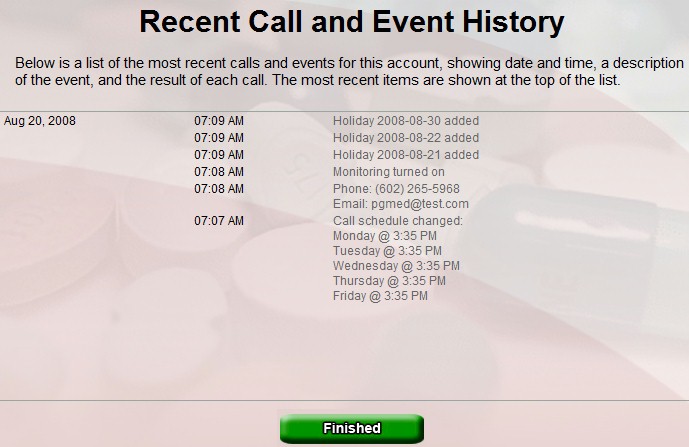
Change Account Active Status
This feature lets you suspend and re-activate an account using a simple toggle. By default, once an account is activated, it is in an active state. If you wish to suspend calling for a period of time, the account status can be turned off.
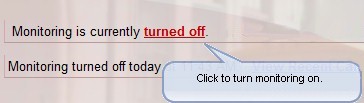
From the registration screen, select the "Active" or "Turned Off" status button to toggle between these two states.
Test Calls
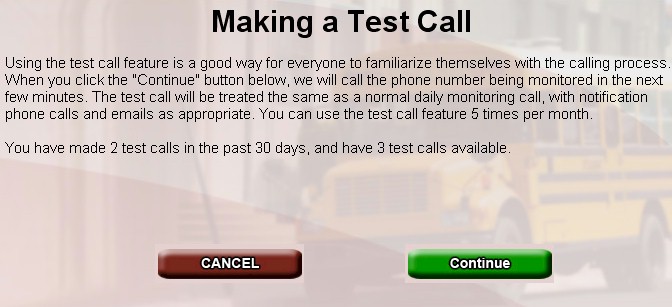
You can test the CARE medication reminder call to ensure that all of the phones and parameters are working properly.
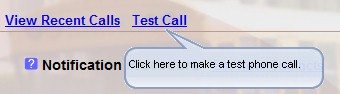
From the registration screen, select the "Test Call" option. This brings up another page that lets you test the CARE call.
Ready To Start?
Register Online using our convenient web registration process or
Contact DSC to learn more about our CARE senior medication calling services.
|

